Now, without further delay: Our dream. ai is not just another sexy picture machine – it’s being advertised as an unfiltered adult image-sharing and chat pigpen that combines the miles of dick pics we’ve become accustomed to with narrative role play and identity.
You’re not just saying “gimmie a picture of X” and waiting around – you’re crafting characters, refining moods, constructing scenes that feel like they fit in your world.
What immediately caught my eye, however, is how the site doesn’t hide away the adult aspect in small print: the site openly advocates creating NSFW content – users can produce artwork and settings that cover a full range of themes (once they toggle on the settings and confirm they’re aged 18+).
That said, there’s a mixture of vibes going on here: part creative tool, part virtual partner simulator.
You can create fancy pants character images – whether it’s an anime aesthetic or as close to a photographic facsimile of yourself you can pull off – and connect those visuals to your characters, whom you will build and communicate with on the platform.
A comprehensive guide of how to use Ourdream Image Generator
Step 1 – Open the Image Generator (“Generate”)
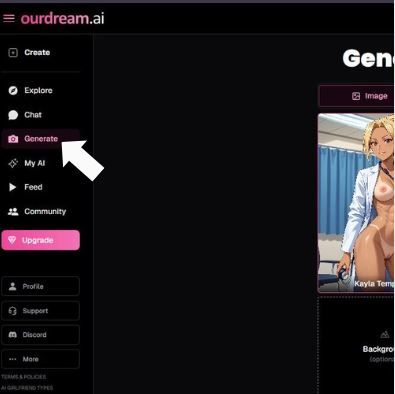
On the left sidebar, click Generate.
What you’ll notice in the sidebar
- Create: usually where you build or set up content (not shown in the generator flow here).
- Explore / Feed / Community: browsing other content.
- Chat / My AI: character/chat features.
- Generate: the screen you want for image/video generation.
- Upgrade button: takes you to paid plans/credits.
- Profile / Support / Discord / More: account and help links.
Tip: If you ever feel “lost,” the sidebar is your home base-just hit Generate again.
Step 2 – Choose “Image” mode (not Video)
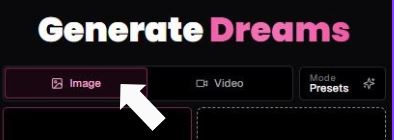
At the top of the generator page (title: Generate Dreams), you’ll see tabs:
- Image (selected for still images)
- Video (for motion content)
Click Image to stay in still-image generation.
You’ll also see Mode Presets near the top right (looks like a toggle/option area). That’s typically where you’d choose predefined setups-handy when you don’t want to manually tweak everything.
Step 3 – Click “Select Character”
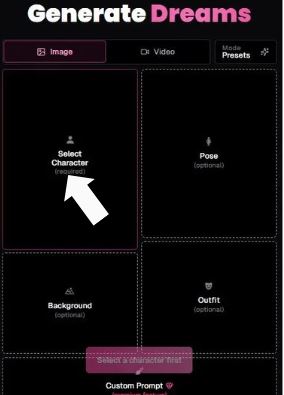
Click the Select Character tile. A character picker modal opens.
This is the “you must do this first” step-your generator won’t proceed meaningfully without a character selected.
Step 4 – Use filters & search in the Character Picker
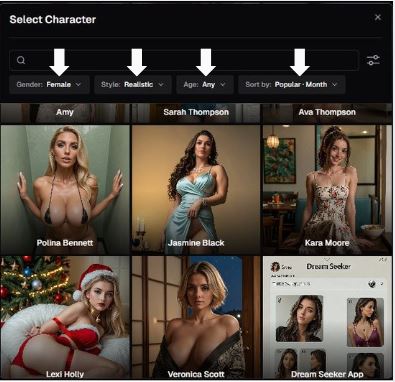
Inside Select Character, you have a clean filter bar:
- Search box (top left): find characters by name/keyword.
- Gender dropdown (example shown: Female)
- Style dropdown (example shown: Realistic)
- Age dropdown (example shown: Any)
- Sort by dropdown (example shown: Popular – Month)
Below that is a grid of character cards (each with a name).
Quick filter cheat sheet
| If you want… | Do this |
| More photoreal characters | Style → Realistic |
| A different vibe (if available) | Change Style (you might see anime, art, etc. in some tools) |
| Trending characters | Sort by → Popular |
| Something specific | Use the search bar first |
When you click a character card, it becomes your selected character in the generator.
Step 5 – Select a Pose
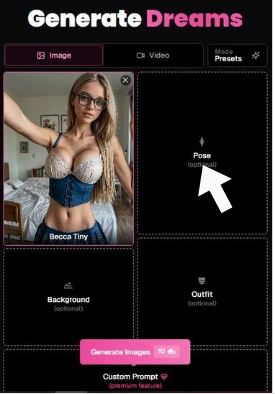
Click Pose (optional).
The screenshots show a tile labeled Pose and an example pose selection name like “Yoga” appearing as a card once chosen.
Pose selection typically:
- helps keep results consistent across generations
- reduces randomness when you want a specific stance
If your output keeps “not matching what you meant,” choosing a Pose is one of the fastest fixes.
Step 6 – Select a Background
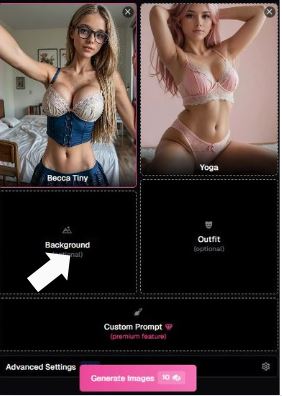
Click Background (optional).
Once selected, it fills the background tile just like the character and pose do. You can also clear it with X (same idea).
Background helps control:
- setting (indoors/outdoors)
- mood (studio lighting vs natural light)
- scene consistency if you generate multiple variations
Step 7 – Select an Outfit
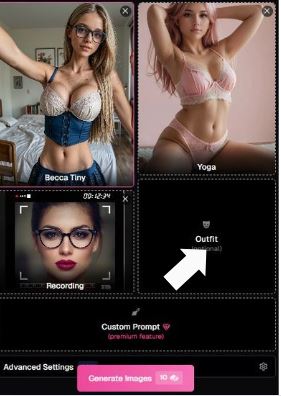
Click Outfit (optional).
Outfit selection typically influences:
- clothing style/theme
- overall aesthetic coherence (especially when combined with a pose)
Again, it becomes a selectable card, and you can remove it with X if it clashes with your direction.
Step 8 – Custom Prompt
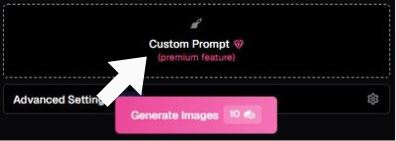
You’ll see Custom Prompt labeled as a premium feature.
What it’s for:
- adding precise details (style notes, scene details, camera vibe, etc.)
- steering results beyond the preset tiles
If you don’t have premium, you’ll likely see it but won’t be able to use it.
Step 9 – Advanced Settings
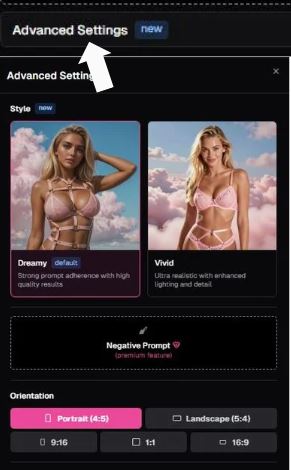
Click Advanced Settings (marked “new”). A panel opens showing:
1) Style selector
Two visible style cards:
- Dreamy (marked default) – described like “Strong prompt adherence with high quality results”
- Vivid – described like “Ultra realistic with enhanced lighting and detail”
Practical difference (based on the labels):
- Dreamy = better at following what you asked for (more “on brief”)
- Vivid = pushes realism and lighting detail (more “cinematic/crisp”)
2) Negative Prompt (Premium feature)
Also shown as premium.
Negative prompts are used to say what you don’t want (examples in general: blur, artifacts, weird hands, extra limbs, text overlays). If premium is enabled, this is one of the best tools for cleaning up results.
3) Orientation / Aspect ratio controls
You can choose:
- Portrait (4:5) or Landscape (5:4)
- plus additional aspect buttons shown: 9:16, 1:1, 16:9 (and possibly more)
When to use what
| Ratio | Best for |
| 9:16 | phone-style vertical |
| 4:5 | portrait posts |
| 1:1 | square thumbnails/profile-like shots |
| 16:9 | wide/cinematic |
| 5:4 | landscape but not too wide |
Step 10 – Generate Images
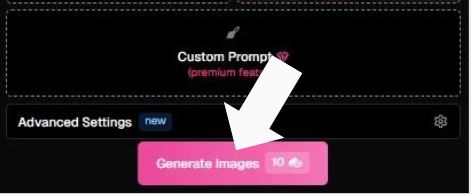
Hit the pink Generate Images button. It shows “10” next to it, which strongly suggests the generator will spend 10 credits (or similar) per run/batch.
There’s also a small gear icon near the button area in some shots-this commonly indicates quick settings access.
What You Get (and What You Really Should Know)
Here’s a quick snapshot comparing basic attributes:
| Aspect | Snooze-y Toolkit | Ourdream NSFW Image Generator |
| Adult-focused prompts | No | Yes – uncensored options available with age check |
| Visual styles | Limited | Anime, realistic, customizable character art |
| Integration with chat | Not really | Tied into your AI companion’s persona |
| Free trial | Sometimes | Yes – with limitations |
| Advanced controls | Basic | Prompt tweaking, style options, accessory details |
| Community & sharing | Not relevant | User creations + explore tab |
This table is meant to show relative idea, not full specs. But if you love control – “I want this face, that pose, that vibe, in that setting” – it’s far more flexible than cookie-cutter noise.
So… What’s the Experience Like?
Pretend you are speaking to an AI character you created. You’ve made their backstory, whatever you think their look is cool or hot and maybe even have an attitude for it. Their portrait pops up.
Then you demand a picture in response to some scenario – maybe something bold, maybe something playful (keep it legal, keep it consensual - remember?).
And then something oddly personal happens: the visuals reflect the personality you’ve been building in chat, rather than just random pixels out of nowhere. It’s actually kind of cool, that link between convo and picture.
Some users say it’s like writing a story side by side with a very enthusiastic partner. Others note there’s a learning curve – particularly if you’re accustomed to simpler prompt tools.
It’s not always plug-and-play perfect; sometimes your prompt sounds great in your head and the generator serves it up with something … well, “interpretive.” But in a way, that’s part of the oddball charm.
A Bit About NSFW Controls
Ourdream reportedly offers a safe/uncensored mode toggle so you’re not tempted to stare at “PG-13 only. That puts you in control: You determine how wide the gate is open.
Those who’ve worked with similar platforms often point out that user control over explicit-ness is more rewarding than killing creativity with strict censorship.
And yet – and here’s the catch – how the system implements its age checks, and treats user privacy, is worth considering.
A couple of them makes the point that you’ve got to be 18 or older to validate on Aurator but the TOS around personal data in and generated media itself isn’t explicitly laid out in ultra-clear terms (here, at least) on Aurator as it’s currently set up. That’s something to check for yourself if privacy is important to you.
The Real Feel – More Than Just Pixels
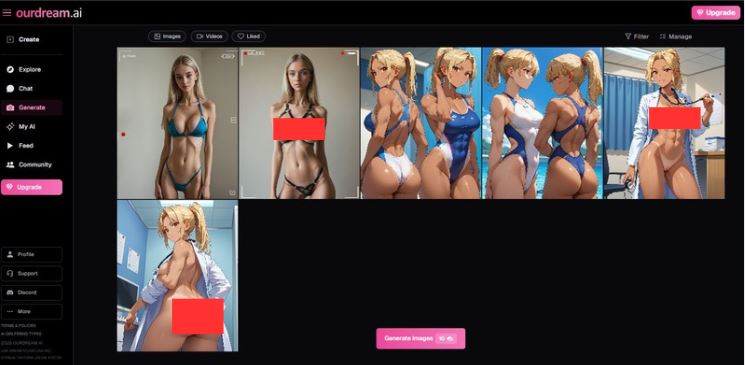
This is where I speak more like someone who’s seen dozens of these tools evolve:
- The pictures aren’t always photo-perfect. Some have odd anatomy or silly artifacts – that’s AI today, not the site’s fault.
- The real personality comes from how you interact with the character you create, not the tool itself.
- There’s a bit of a grind if you want high fidelity – you may want credits or subscription tiers for premium prompts.
But when it does land, it lands. The personalization potential can genuinely feel like you’re curating your own fantasy world, not just clicking random options. People rave about how the visuals connect to the chat flow – and for many, that’s the secret sauce.
Some Practical Tips (That Sound Like Real Talk)
You will hear people whine about paywalls. Yes, they’re out there – free trials are available and give you a taste to the smooth high-detail images hidden behind credit or premium access. That’s standard in this space.
If you’re on the fence – try the free tier. That is how you learn those polishes without knocking your head against “credit for every thing.” Best to sample the workflow before taking the expensive leap.
Also, if discretion is important then read the privacy and terms. Tools that tiptoe around adult content can occasionally attract more attention from regulators or payment processors, so it pays to know what you’re signing up for.
Final Thoughts – Real, Relatable, and Not Just Marketing
If you’re curious, creative and like to combine storytelling with visuals, this isn’t a dumb toy. It could be a legitimate creative engine for all of those characters and scenes you’ve always wanted to do – packaged in whatever vibe you prefer.
It’s not perfect; it’s not a panacea. But it’ll also reward patience and imagination more than a lot of other cookie-cutter AI art tools.
Would I recommend an adult user who is curious to give it a shot? Yeah – after a sampling of the software’s free version, you’ll be able to tell rather easily whether it scratches your itch.
And if it does? There’s a huge suite of customization options to keep you exploring for hours.