Well, right in: you’re interested NSFW AI video generation and Promptchan is one of the systems floating around in that sphere.
I’m going to take you through this the way I’d tell a friend of mine who’s considering clicking that “try it now” button - complete with no-crap, homey bullet points and none of that corporate-ese.
You’re sitting at your laptop, messing with the latest AI tools, and someone goes “Oh yeah, Promptchan is posting uncensored NSFW videos.”
You blink and raise an eyebrow: “Right, tell me more.” That’s the feeling I want you to have when it’s over – enlightened and intrigued, rather than puzzled and inundated.
How to use Promptchan Video Generator: Step-by-step guide
Step 1 – Go to Create (top navigation)

In the header bar (top-right area), you’ll see navigation items like:
- Explore (browse other creations)
- Create (this is what you want)
- Chat (separate feature area)
- Upgrade (paid plan access)
- A small diamond/credits indicator (looks like you have “2”)
- A profile icon (account/settings)
Action: Click Create.
Why it matters: Everything video-related lives under Create. Explore is for browsing; Create is for generating.
Step 2 – Switch from Image to Video
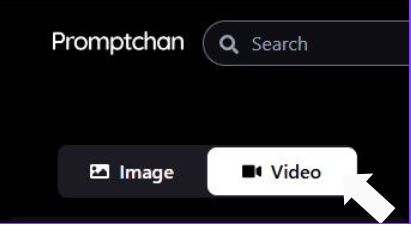
On the creation page, there’s a clear toggle with two big options:
- Image
- Video (with a small camera icon)
Action: Click Video.
If you accidentally stay on Image, you’ll end up generating stills instead of motion.
Step 3 – Choose your Starting Point (Prompt vs Image)
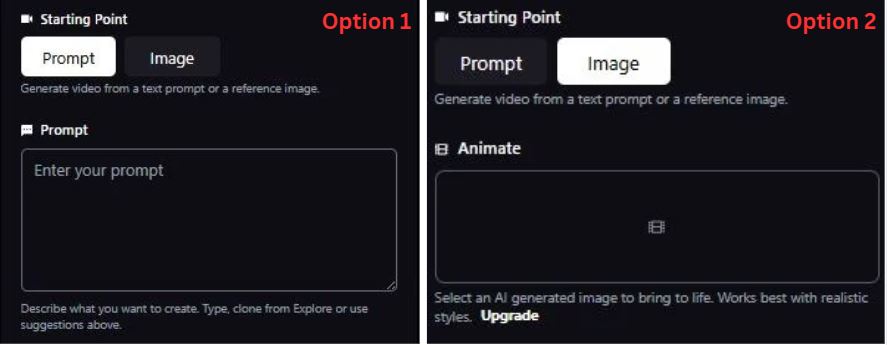
You’ll see a section labeled Starting Point with two tabs:
- Prompt
- Image
And a helper line that basically says: Generate video from a text prompt or a reference image.
Option A: Starting Point = Prompt
When Prompt is selected, you get a text box labeled Prompt with placeholder text like “Enter your prompt”.
Use this when:
- You want to generate a video purely from text.
- You don’t have a reference image.
- You’re exploring ideas quickly.
Option B: Starting Point = Image
When Image is selected, the Prompt box disappears and you instead see an Animate area (a big empty panel) plus a note like:
- Select an AI generated image to bring to life. Works best with realistic styles.
- There’s also an Upgrade link nearby (meaning this path may be limited on free plans).
Use this when:
- You already have (or plan to pick) an AI-generated image and want it animated.
- You want stronger character consistency (same person/subject throughout).
Quick decision table (Starting Point)
| What you want | Pick this | What you’ll see |
| “Make a video from scratch using text” | Prompt | A big Prompt textbox |
| “Animate an existing/generated image” | Image | Animate panel + (often) Upgrade note |
Action: Pick Prompt or Image based on your goal.
Step 4 – Set Motion (Auto vs Prompt)
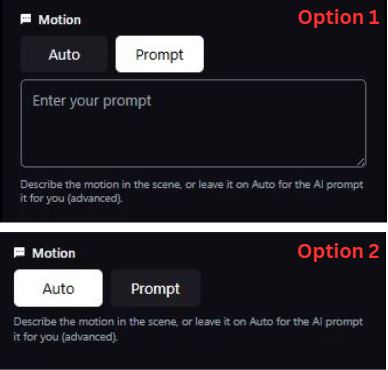
Next you’ll see a Motion section with two choices:
- Auto
- Prompt
Under it, the UI explains (paraphrasing what’s visible):
- Describe the motion in the scene, or leave it on Auto for the AI to prompt it for you (advanced).
Motion = Auto
Auto means you’re letting the system decide how things move based on your scene description.
Best for:
- Faster generations
- When you don’t want to micromanage movement
- Early experiments
Motion = Prompt
When you switch to Prompt, a text field appears (again showing “Enter your prompt”) where you describe motion.
Best for:
- You want specific actions (walks forward, turns head, hair blowing, camera pan, etc.)
- You’re trying to avoid “random wobble”
- You want a particular camera feel (slow zoom, tracking shot, etc.)
Motion guidance table (what to type)
| Motion goal | Example wording style (keep it simple) |
| Subtle realism | “natural breathing, slight head movement, gentle blink” |
| Character action | “steps forward, turns left, looks at camera” |
| Camera movement | “slow zoom in, steady camera, soft depth of field” |
| Mood movement | “slow drifting motion, calm pacing, minimal shake” |
Action: Choose Auto for quick results, or Prompt to control movement.
Step 5 – Final setup and Create the video
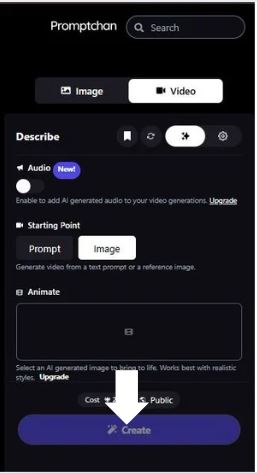
This is the main “builder” screen (your tall screenshot). Here’s what’s visible and what each part does.
- A) Top area (mode + search)
- Promptchan title on the left
- A Search bar (useful if you’re looking for prompts/templates/creations to reference)
- The Image / Video toggle (confirm you’re on Video)
- B) “Describe” section (your main prompt area)
You’ll see the label Describe with a row of small controls/icons next to it.
What you can safely infer from the layout:
- The Describe area is where your main scene prompt lives.
- The nearby icons are quick toggles/settings related to the prompt or generation mode (you don’t need them to generate, but they’re there for fine-tuning).
Practical tip: If the result isn’t what you want, your biggest lever is nearly always the Describe text, not the tiny icons.
- C) Audio (New) (Upgrade-gated)
There’s a section labeled Audio with a New tag, plus text like:
- “Enable to add AI generated audio to your video generations.”
- And an Upgrade link.
What this means: Audio generation exists, but may require a paid plan.
- D) Starting Point (again)
This section appears again on the builder screen with the same tabs:
- Prompt
- Image
So even if you picked earlier, you can double-check here.
- E) Animate panel (when Image is selected)
There’s a large empty panel under Animate (with a small icon centered). This is where you select/provide an AI-generated image to animate.
You also see guidance text that it works best with realistic styles, and another Upgrade link nearby (again hinting the feature is limited on free access).
- F) Visibility + cost + Create button
Near the bottom you have:
- A Cost indicator (shows how many credits/tokens this generation will use)
- A Public toggle/option (meaning your output may be shareable publicly)
- A big Create button (this is the final “generate video” trigger)
What Promptchan is (and what it actually does)
Here’s the skinny: Promptchan AI is a creative space known for creating character images and videos – from anime to realistic portrait styles, as well as some not safe for work options.
Promptchan AI However, this time they’re asking you not to ignore the writing on its wall. It styles itself as a more open generator than common general purpose ones that are wrapping the caller into heavy safety stuff.
But before you get some cinematic scene in your head, let’s be clear: Promptchan’s NFSW feature revolves around paid access and creative prompting rather than one-click magic.
It’s an animated text-hardcode-generator from your prompts out there, and also it has community templates that other people upload too.
There are some platforms that ban porn (or even spicy stuff>, Promptchan doesn’t hide that behind a labyrinth of 500 error pages. That is one reason it appears on lists for “uncensored 18+ video generators.”
How it feels to use Promptchan (my honest take)
Let’s say you’re experimenting with this thing. There’s no way to avoid the fact that the interface requires a little imagination – it’s not as easy as turning on a filter in your phone’s camera app:
Tables, options, sliders, templates – you’ve got a dashboard and it can feel like getting handed a paint set with no how-to video.
But if you’re the type of person who enjoys fiddling, and the trial and error that comes with it, then so much the better.
The model isn’t just you churning out “fun times” and hoping for Pandora-box results. (The better outcomes are when you add detail and context to those prompts: the characters, scene, motion, angles or style of shot.
Instruments such as this forever reward the specific in opposition to a broad appeal. It can be like learning to pilot something new, but once you’ve got the hang of the controls it’s pretty satisfying.
Key Attributes Compared (simple table to reduce yawns)
I put this together so you don’t get lost in marketing fluff:
| Feature | What Promptchan Offers | Typical Experience |
| NSFW video creation | Supported via Pro/paid plans | Generate short clips from text or image prompts |
| Styles | Anime, hyper-real, cinematic | Varied aesthetics if you tweak settings |
| Community prompts | Shared templates available | Helps newcomers start without reinventing the wheel |
| Ease of use | Moderate | Not plug-n-play; needs clear cues & patience |
| Customization | Good | You can adjust scenes, backgrounds & flair |
| Pricing | Subscription + credits | Pay to generate longer/more clips |
Those ‘credits’ or ‘gems’ models are common-basically you buy a bundle, then each video clip request draws from that balance. If you exhaust them, you wait or top up. That’s part of the experience.
What makes it fun (and a bit quirky)
Discussing AI video generation without laughter is like discussing pizza without cheese – it’s doable, but why would you? Users refer to Promptchan’s creative space as more playful than sterile.
People swap prompts, remix other people’s prompts, tag styles and check out what others are cooking up. It is a clubhouse for creators with a little spice thrown in.
Not every clip will be master-level cinema. Sometimes the movement resembles a cartoon character shot by a rubber band gun.
But that’s just part of the ride – like early digital art tools used to be, back in the day: The first results are funky at best, but once you learn the quirks and theories behind a tool, you start making stuff you actually want to make.
The honest downsides
Real talk: you may hit limitations:
- Quality and realism vary wildly depending on prompt clarity.
- Subscription costs can add up if you’re cranking out content regularly.
- The learning curve isn’t trivial if you’re new to generative video AI.
And the biggest piece of advice I’d give anyone thinking about trying it: don’t upload images of real people without consent. Even if the platform permits edits or animations, privacy and legality don’t take a holiday. (That’s not AI doom-scrolling-just real wisdom.)
Summary – Would I try Promptchan for NSFW videos?
Yes, I would. But not casually.
It’s a tool for intrepid creators who want to take control and are not afraid of experimenting. That left Promptchan, which is interesting if you’re looking for something that allows your creative idea to come alive (in terms of style and in terms of motion) and are OK doing a little bit of work to understand how prompts structure output.
It is a factory of instant videos – but it’s a sandbox where your creativity yields the results. The pricing model, community prompts and range of stylistic controls set it apart from tools that either censor heavily or simply feel half-baked.”
If your priority is creativity and trying to get the best possible shot rather than always getting it immediately, then give the free tier a try first before deciding whether the Pro features are worth paying for. That’s the official way to dip your toes into this ever-changing world of AI video generation.