SoulGen is an AI art generator that specializes in portraiture, particularly the two popular styles of anime and paintersly portraits.
It’s the kind of tool that people discover and think, “I wish I could turn this idea in my mind into an image without having to learn Photoshop or taking six hours adding instructions.” And honestly? It’s precisely that problem that it seeks to correct.
What sets SoulGen apart is not just the art quality – we’ll get there - but how shamelessly it doubles down on personalization. You’re not just creating “a girl” or even a “fantasy character.”
You are creating a person – looks and mood and pose and vibe, all of it. It’s less like rolling dice and more like collaborating with a very fast, very visual artist who never gets tired or judgmental.
SoulGen: Detailed user guide
Step 1: Choose the character type and write your prompt
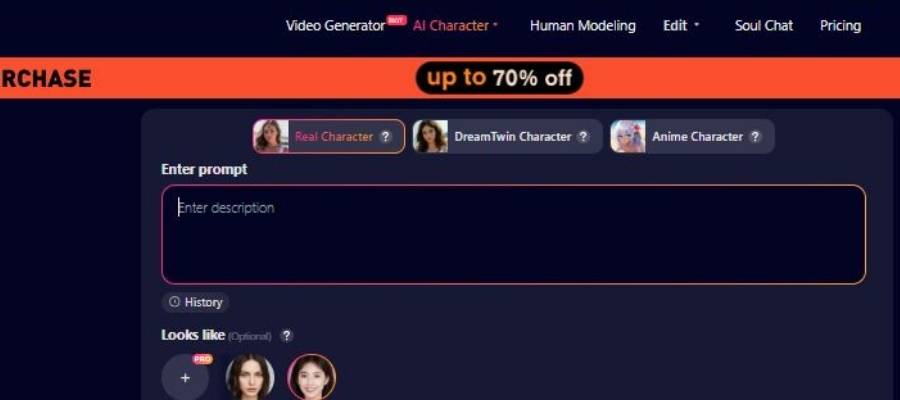
1) Pick a character mode (tabs at the top of the generator panel)
Right above the prompt box, you’ve got three pill-style tabs:
- Real Character (selected in your screenshot)
- DreamTwin Character
- Anime Character
Each tab has:
- A small avatar image
- A (?) help icon beside the label (meaning there’s likely a tooltip/explanation)
How to choose:
- Real Character → best for realistic “photo-like” portraits.
- DreamTwin Character → sounds like a “paired / idealized” character mode (often these modes push a dreamy, romantic, soft aesthetic).
- Anime Character → for stylized anime girlfriend results.
If you’re unsure, pick Real Character first. It’s usually the easiest to prompt because normal descriptive language works well.
2) Write the prompt (the big “Enter description” box)
The prompt area is labeled “Enter prompt” and the placeholder says “Enter description”.
This is where you describe your AI girlfriend. The more specific you are, the less the AI “fills in the blanks” with random choices.
A prompt structure that works reliably
Use something like this:
- Identity & vibe: age range (adult), personality vibe, mood
- Appearance: hair, eyes, facial features, style
- Outfit: casual / classy / sporty (keep it simple at first)
- Setting: indoors, cafe, city night, etc.
- Lighting/camera: soft light, cinematic, portrait shot
- Quality hints: high detail, sharp focus, natural skin (if realistic)
Example prompt (realistic):
“Adult woman, warm friendly expression, shoulder-length dark brown hair, natural makeup, light sweater and jeans, sitting in a cozy cafe, soft window light, realistic portrait, sharp focus, high detail.”
Example prompt (anime):
“Adult anime girl, playful confident vibe, long wavy blonde hair, blue eyes, casual streetwear, city background at sunset, clean linework, vibrant shading, anime portrait.”
3) Use “History” if you want to reuse prompts
Under the prompt box, there’s a History button/icon. That’s typically for:
- reusing older prompts
- quickly regenerating something you liked
- avoiding the “wait… what did I type last time?” problem
If you’re experimenting (and you will), History saves your sanity.
Step 2: Set “Looks like” (optional) and choose a style
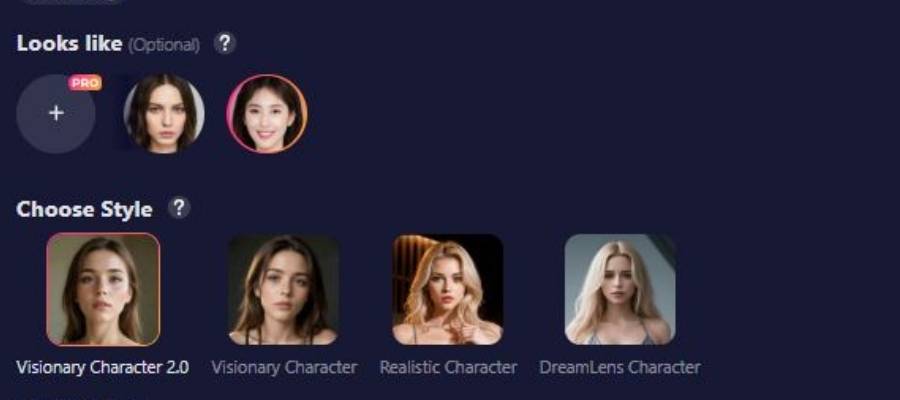
This step is shown in your second screenshot.
1) “Looks like (Optional)” – what it does
You’ll see Looks like (Optional) with a (?) help icon.
Under it are:
- A plus (+) button with a PRO label
- A couple of face thumbnails (example reference faces)
This strongly suggests:
- You can add a reference face/image to guide the AI toward a specific look
- The (+) button is PRO-only, meaning uploading/adding your own reference likely requires a paid plan
- The thumbnails are probably preset references or previously used references
When to use “Looks like”
Use it if you want:
- consistent facial identity across generations
- a specific “type” of face shape / features
- less randomness
Skip it if you’re still exploring styles and don’t care about consistency yet.
2) “Choose Style” – select the rendering model/look
This section is labeled Choose Style with another (?) help icon.
The visible options are:
- Visionary Character 2.0
- Visionary Character
- Realistic Character
- DreamLens Character
Think of these as “art engines” or “style presets.” They change the look even with the same prompt.
Here’s a practical way to think about them:
| Style Option | What it’s likely best for | When you should pick it |
| Visionary Character 2.0 | More polished / upgraded stylized portraits | You want “wow” factor without going full realism |
| Visionary Character | Stylized, slightly softer than strict realism | You want a pretty character look with flexibility |
| Realistic Character | Photo-like outputs | You want a believable girlfriend portrait |
| DreamLens Character | Dreamy, cinematic, soft glam vibes | You want romantic / ethereal mood and lighting |
If your chosen tab is Real Character, try Realistic Character first. If it feels too “stock photo,” switch to DreamLens Character for a softer mood.
Step 3: Pick aspect ratio, number of images, then Create
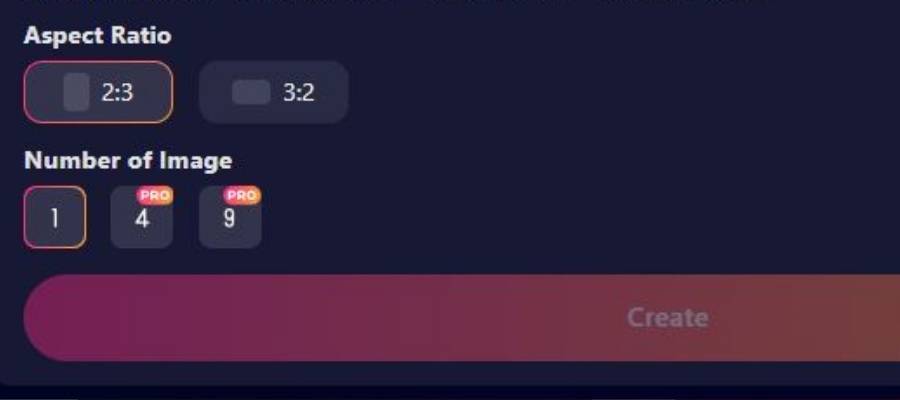
This is your third screenshot.
1) Aspect Ratio
You have two options:
- 2:3
- 3:2
This controls the image shape:
| Aspect Ratio | Feels like | Best for |
| 2:3 | Portrait / vertical | profile pics, character portraits, “phone-friendly” images |
| 3:2 | Landscape / horizontal | wider scenes, backgrounds, banner-style shots |
If you’re generating a girlfriend portrait, 2:3 is usually the move.
2) Number of Image
You have three choices:
- 1 (available)
- 4 (PRO)
- 9 (PRO)
So on a free tier you can likely generate 1 image at a time, while paid users can batch-generate 4 or 9 variations per run.
Tip: If you only get 1 image, you’ll want to write prompts that produce predictable results and iterate quickly.
3) Create button
There’s a big Create button at the bottom. In your screenshot it looks a bit muted/greyed-usually that happens when:
- you haven’t entered a prompt yet, or
- a required option isn’t selected
Once your prompt is filled and a character tab/style is selected, the button should become active.
Pros and Cons
Nothing’s perfect. If a tool tells you it is, run. Here’s the good, the bad, and the “eh, I can live with that.”
Pros
- High-quality anime and realistic character generation
- Excellent prompt control (surprisingly forgiving too)
- Reference image upload actually works, not just a gimmick
- Clean interface-no learning curve panic
- Fast generation times
Cons
- Free version is quite limited
- Mostly focused on characters, not landscapes or abstract art
- Some advanced features are locked behind a paywall
- Results can occasionally feel too polished (odd complaint, I know)
Quick Snapshot
| Aspect | Verdict |
| Ease of Use | Very beginner-friendly |
| Output Quality | Impressively consistent |
| Creative Freedom | High (especially with prompts) |
| Value for Money | Fair, but not cheap |
| Fun Factor | Addictive, beware |
How does it work
You start with a prompt. Simple enough, right? But SoulGen doesn’t stop there. You can customize wardrobe, facial expressions, backdrop, art style and even pose. It’s as if you are picking out a bespoke meal rather than being served whatever the chef wants to whip up that day.
If words aren’t your thing, SoulGen allows you to upload a reference image. Here’s where it gets interesting. And the AI isn’t just mimicking the idea in a vague way-it understands the structure and style of that language and articulates something new with it. That’s the moment you’re like, “Oh … okay, this is a thing.”
Behind the scenes, it’s all the usual AI wizardry – deep learning models trained on mountains of data – but from a user standpoint, it feels shockingly human. You attempt, you adapt, you respond. Rinse and repeat.
Core Functionalities
SoulGen keeps its focus tight, which I respect. Instead of trying to be everything, it doubles down on what it does well.
| Functionality | What it does |
| Text-to-Image | Generates characters from written prompts |
| Image-to-Image | Creates new art based on uploaded references |
| Style Customization | Anime, realistic, semi-realistic |
| Pose & Outfit Control | Adjusts body language and clothing |
| Background Editing | Adds context without overpowering characters |
This isn’t a “set it and forget it” tool. It invites tinkering. And if you’re the kind of person who enjoys nudging sliders just to see what happens-yeah, you’ll lose track of time.
Key Features
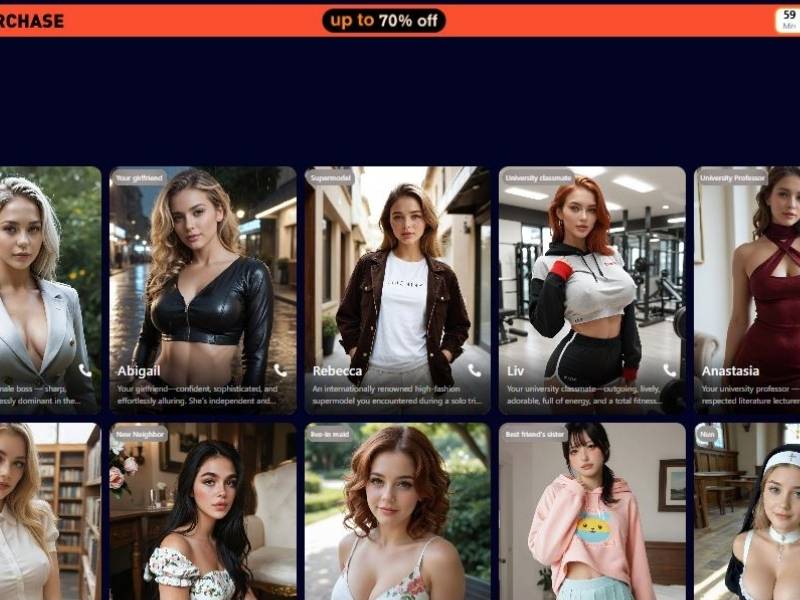
Here’s where SoulGen earns its keep.
Prompt Sensitivity
The AI actually listens. Small changes in wording can lead to noticeably different results. That’s rare, and frankly, refreshing.
Reference Image Support
Upload a photo or sketch, and SoulGen uses it as a creative anchor rather than a rigid template.
Character Consistency
Generating the same character across multiple images? SoulGen handles that better than most competitors.
NSFW Filtering Controls
Handled with clear settings instead of awkward surprises. You choose the lane, the AI stays in it.
Fast Rendering
No staring at loading bars wondering if your prompt broke the system.
My verdict
SoulGen feels like a tool built by people who actually use AI art generators rather than developers following a trend. It knows who its audience is, and it makes no bones about pretending otherwise. If you are into character design, anime effects or realistic portraits with life to them, this thing hits more often than it misses.
Is it perfect? No. But it’s smooth, refined and actually quite fun to operate. I already live that reason: I’ve played enough A.I. toys to make my memory a blur of forgettableness. SoulGen sticks. It has a voice. And yeah, I’d recommend it – particularly if you like characters that feel intentional and not random.
If AI-designed art tools were a party, SoulGen wouldn’t be the life of the party – but it’d be the one that everyone ends up talking to.
FAQs
Is SoulGen beginner-friendly?
Absolutely. You don’t need prompt-engineering wizardry. Start simple, experiment, and you’ll pick it up fast.
Does SoulGen support realistic images?
Yes, and surprisingly well. While anime is its strong suit, realistic portraits can look polished and expressive.
Can I use SoulGen images commercially?
That depends on your subscription plan. Always check their licensing terms before using images for business or resale.
Is the free version worth trying?
As a test drive, yes. As a long-term solution, probably not. The paid features unlock most of the fun.
Who is SoulGen best for?
Artists, writers, game designers, or anyone who enjoys turning vague ideas into visuals without friction.