
Let’s get straight to it. And for anyone wondering whether AI video tools can create unfiltered adult-themed video content (yes, the kind you’re hoping we won’t say too much about), SoulGen is reportedly one of a select few that technically allow that type of creative freedom – at least according to several separate sources and user reports online.
But it’s worth understanding what exactly “uncensored” even means in practice, what its strengths are, and where you might butt up against limits.
The thing that really struck me as I dug into this is how the conversation around the tool isn’t binary – it’s not “it works” or “it doesn’t work.”
It’s more of a continuum: You are given access to powerful video-generation capabilities, but how far you can take it depends a great deal on patience, prompts and nuance. That’s where most reviewers (and creators out there) seem to fall in.
How to use Soulgen AI Video Generator: Step-by-step guide
Step 1 – Open Video Generator and choose “Image to Video”

In your first screenshot, the arrow points to:
- Video Generator (BETA) in the top bar
- Then Image to Video
What to do
- Click Video Generator (BETA)
- Click Image to Video
You’re now in the exact screen shown in steps 2–5.
Step 2 – Choose your Model (quality/behavior settings)
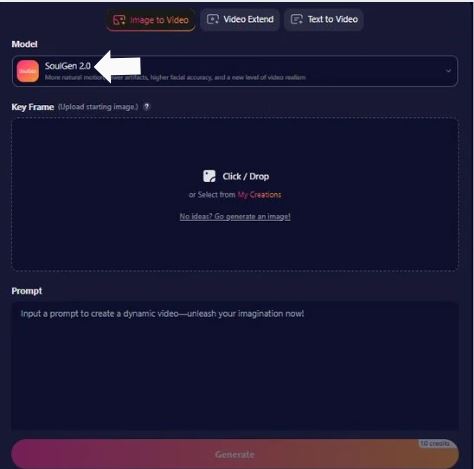
The next screenshot highlights the Model section.
You’ll see:
- A label: Model
- A dropdown currently set to SoulGen 2.0
- A description line under it (paraphrasing what’s visible):
“More natural motion, fewer artifacts, higher facial accuracy, and a new level of video realism.”
What this means
- Model = the video brain.
Different models (if available in the dropdown) usually trade off realism, style, speed, or consistency. - SoulGen 2.0 is presented as the “better realism” option.
What to do
- Click the Model dropdown
- Select the model you want (if more options appear)
- If you’re unsure, stick with SoulGen 2.0 since it’s described as improved realism and facial accuracy.
Tip: If your goal is a stable character face, always pick the model emphasizing facial accuracy and fewer artifacts (that’s literally what the UI claims SoulGen 2.0 is tuned for).
Step 3 – Add your Key Frame (starting image)
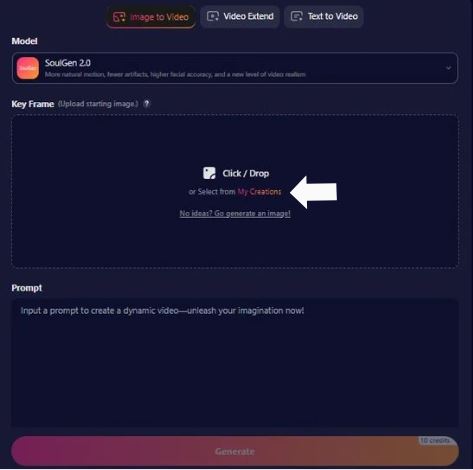
Next up is the Key Frame section.
You’ll see:
- Key Frame (Upload starting image)
- A big dashed upload box with:
- Click / Drop
- or Select from My Creations
- A helper link: “No ideas? Go generate an image!”
What a Key Frame is
This is your first frame / anchor image. The generator uses it to:
- lock in the character identity (face, outfit, vibe)
- lock in the scene composition (camera angle, background)
- reduce randomness compared to pure text-to-video
Your options here
Option A: Upload from your device
- Click inside the dashed box and choose a file
or drag and drop an image into the box
Option B: Use “My Creations”
- Click Select from My Creations
- Pick an image you previously generated/saved in the platform
Option C: Generate a starter image
- Click “No ideas? Go generate an image!”
- It likely takes you to an image generator module, then you come back and use that image as the keyframe
Keyframe best practices (so your video doesn’t come out weird)
| If you want… | Use a keyframe that… |
| Stable face | Shows the face clearly, not tiny or hidden |
| Smooth motion | Has a simple background and clean lighting |
| Less glitching | Avoids busy patterns (tiny stripes, complex jewelry, heavy text) |
| More control | Matches the vibe you want (angle, mood, outfit) before animating |
Step 4 – Write the Prompt (this controls the motion + scene behavior)
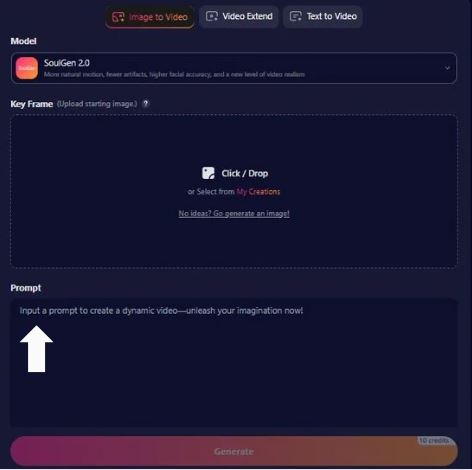
Under the Key Frame area you’ll see:
- A label: Prompt
- A big text area with the placeholder:
“Input a prompt to create a dynamic video-unleash your imagination now!”
What the prompt does in Image-to-Video
Since the image already defines who/what we see, the prompt is mainly used for:
- motion (turning head, walking, hair moving, camera pan)
- camera direction (close-up, slow zoom, dolly shot)
- environment changes (wind, rain, light flicker – if the tool supports it)
- mood (cinematic, dreamy, realistic, dramatic lighting)
A practical prompt formula (works well for most tools)
Use 3 parts:
- Subject motion
- Camera motion
- Style / pacing
Example (safe, general):
Subtle head turn and natural blinking, hair gently moving as if in a light breeze. Slow cinematic push-in, steady camera, realistic lighting, smooth motion, high detail.
Prompt dos and don’ts
| Do | Don’t |
| Describe motion clearly (“slow walk forward”, “turn head left”) | Write only vibes (“make it cool”) |
| Keep it simple for first try | Stuff 12 actions into one clip |
| Mention camera behavior | Assume the AI reads your mind |
| Ask for “smooth motion” / “stable face” | Ignore stability if you care about realism |
Step 5 – Generate the Video (and watch your credits)
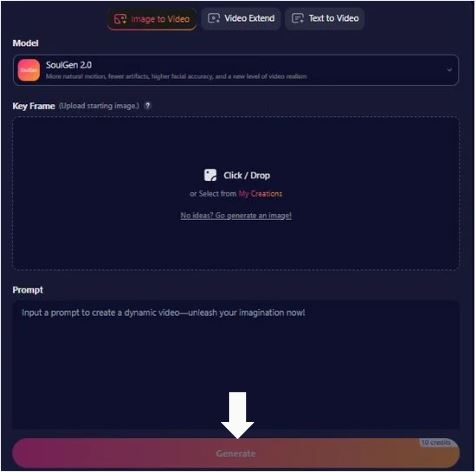
At the bottom center, there’s a big Generate button (gradient bar). In your last screenshot, the arrow points directly to it.
On the bottom right, you can see a small indicator showing something like “10 credits” (a credit counter).
What to do
- Confirm you have:
- a selected Model
- a Key Frame image uploaded/selected
- a Prompt written
- Click Generate
What to expect
- The Generate button may be disabled until the required inputs are present.
- Each generation typically consumes credits (the UI showing credits suggests that).
What the Tool Is (Beyond Buzzwords)
SoulGen is fundamentally an AI video generator that operates entirely in your browser – no hefty download, no local GPU hours, no terminal freak-outs. You can:
- Generate videos from text prompts
- Animate still images into short, cinematic clips
- Extend or transform existing video sequences
Overall, this makes it one of the most accessible tools on the market right now.
How It Works (Simplified)
| Input Type | What It Does | Real-World Use |
| Text-to-Video | You write a description, it makes a clip | Great for short creative scenes |
| Image-to-Video | A photo becomes animated | Ideal for character motion |
| Video Extend | Stretch existing video forward | Useful for transitions & longer visuals |
This structure lets you lean creative – not just generic motion.
The “Uncensored” Angle – What That Really Means
A lot of people think “uncensored AI” = “anything goes, no holds barred“. That’s not exactly right here.
Reality Check:
SoulGen itself doesn’t publish a clear public policy that says “we allow explicit adult content.” There isn’t a big banner on its official pages saying “go crazy!” – and this ambiguity is intentional and structural in some AI tools.
Here’s how most experienced users break it down:
- The engine can render detailed and lifelike videos because it’s built for motion realism and consistent facial identity. That’s the technical foundation that makes “uncensored-style” content possible.
- There isn’t a hard-coded adult-content filter like you might see on safer, commercial platforms – but that doesn’t mean every prompt will work instantly or perfectly.
- Prompt wording matters an awful lot – vague, stylistic, or euphemistic descriptions often yield better control than blunt keywords. This isn’t a bug; it’s how current generative models interpret language.
So the uncensored experience doesn’t come with a “magic switch.” It’s more like you’re given the tools and playground, but you have to craft your content intelligently.
That’s why many reviewers describe it as possible to generate such content, but not always guaranteed or predictable.
What Sets SoulGen Apart from the Pack
I’ll be honest: a lot of AI video tools make wild claims, but SoulGen actually has some real tech achievements behind it:
| Feature | Why It Matters |
| High ID Consistency Score (~0.96) | Faces and characters stay recognizable in motion – even when scenes change. That’s huge for realistic results. |
| Fast Generation Times (~1 min per clip) | You don’t wait ages just to see what the AI came up with. |
| Multiple Generation Modes | Flexibility – not just one way to make video. |
| Browser-Based, No-Install | Anyone with a modern laptop or desktop can try it. |
Here’s the part that truly impressed me: most competitors either nail one of those areas or none at all – SoulGen delivers all four.
Pros vs. Cons (Real Opinion – Not Marketing)
You’re here for honest feedback, so here’s mine:
What Works Really Well
- You get what you imagine more often than not – text and image prompts map strongly to outputs compared to other tools. That’s not trivial.
- Animations look smooth and real; characters feel alive rather than robotic or glitchy.
- No hardware hurdles – no GPU needed, no installation headaches.
- Creative freedom is high (especially compared to stricter content-filtered engines).
Where It Gets Messy
- Prompting skill matters: beginners sometimes end up with weird or generic outputs until they learn the prompt language.
- “Uncensored” isn’t a labeled feature: it’s more about what the model doesn’t explicitly prevent, meaning you experiment and see.
- No official clear policy on restricted content: so you’re navigating a bit in the gray with what works reliably.
If I had to sum it up without sugarcoating: this is one of the most capable AI video engines you can try right now, but expect a learning curve and occasional quirks.
Final Take – For People Who Really Want Uncensored Creativity
If you’re drawn to AI video generation because you want freedom, realism, and fine-grained control, SoulGen is absolutely worth a spin. It’s not perfect, and it’s not a one-click “adult content machine.” What it is:
- A creative engine with real depth
- A platform that doesn’t overly censor by default
- A space where subtle prompt mastery pays off
- A tool capable of producing professional-looking, lifelike clips
I’d tell anyone serious about this to start with the image-to-video workflow first (turn your best reference image into motion), then refine with text prompts – that lets you shape content without flailing around blind.
Once you get the hang of it, you’ll find it’s not just about uncensored content – it’s about telling stories, shaping motion, and finally seeing static visuals come alive.