Straight up: Ourdream. ai is giving a tool that lets you create videos using AI models without content filters built in, so you don’t have to be relegated to the same “safe for work” constraints other platforms tell you.
That’s what “uncensored” means here. You feed it prompts (or pick characters) and it generates short video clips that match your idea.
This is not just “text → image” though, it actually moves – granted not at the level of Hollywood animation. Imagine you were sketching a scene in words, and the A.I. brought those still images to life to create a short clip.
Ourdream Video Generator: Detailed user guide
Step 1: Enter the Generate Workspace
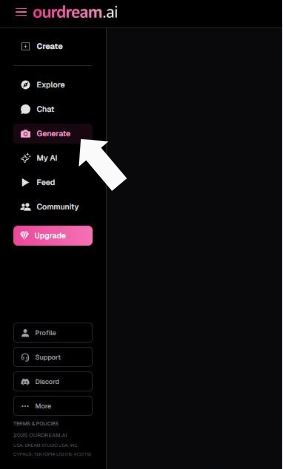
Once logged in, your first move is simple but important.
- Look at the left-hand sidebar
- Click Generate
This opens the main creation workspace called “Generate Dreams.”
Everything you do next happens here. No bouncing between pages, no hidden menus.
Think of this as your control room.
Step 2: Switch from Image to Video Mode
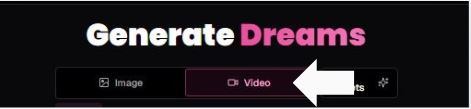
At the top center of the screen you’ll see two tabs:
- Image
- Video
You must select Video if your goal is an AI girlfriend video.
Why this matters:
- Image mode creates static results
- Video mode unlocks actions, motion, and scene logic
Once Video is selected, the interface rearranges itself into a four-tile layout:
- Character
- Action
- Background
- Outfit
This layout is the backbone of the entire generator.
Step 3: Select Your AI Girlfriend (Character)
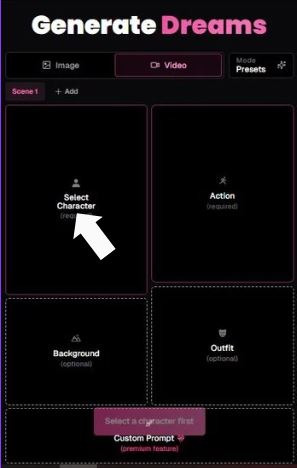
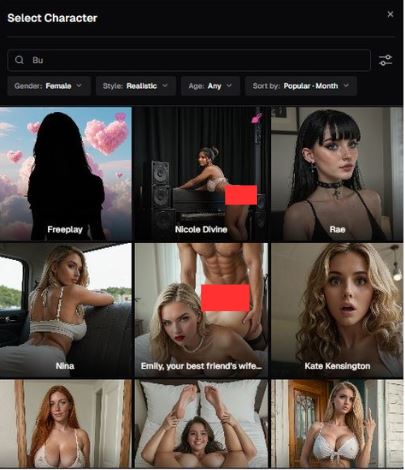
This is where your AI girlfriend begins to exist.
- Click Select Character
- A character gallery opens
- Choose one (example shown: Kara Moore)
What this does:
- Locks in facial structure, body type, and base appearance
- Defines how the AI animates movement later
Once selected, the character tile fills with her preview image and name.
No character = no video. The generator won’t let you skip this step.
Step 4: Choose an Action (Required)
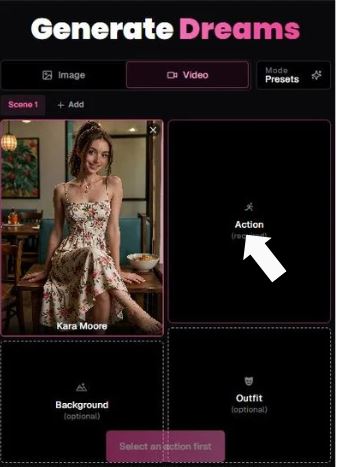
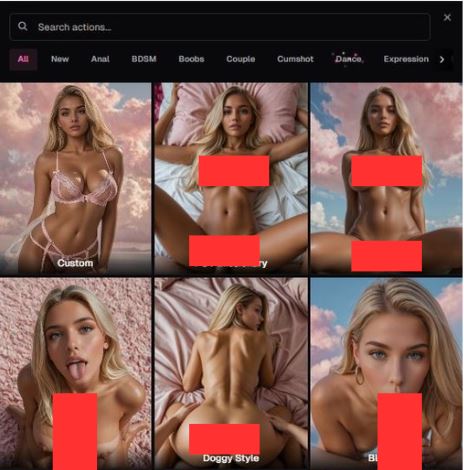
Next tile: Action — and this one is mandatory.
- Click Action
- Choose from predefined motion presets (example shown: Titty Drop)
This step controls:
- Body movement
- Timing
- Loop style
- Overall animation behavior
Without an action, the AI has nothing to animate. That’s why the interface clearly marks it as required.
If you ever wonder why a video feels static or lifeless, nine times out of ten the action choice is the reason.
Step 5: Select a Background (Optional but Powerful)
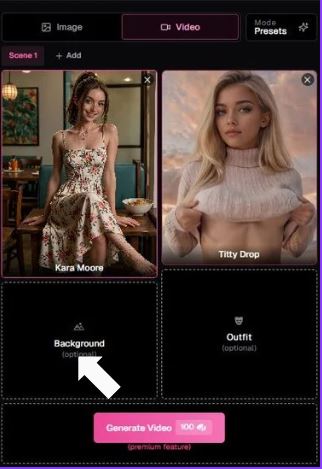
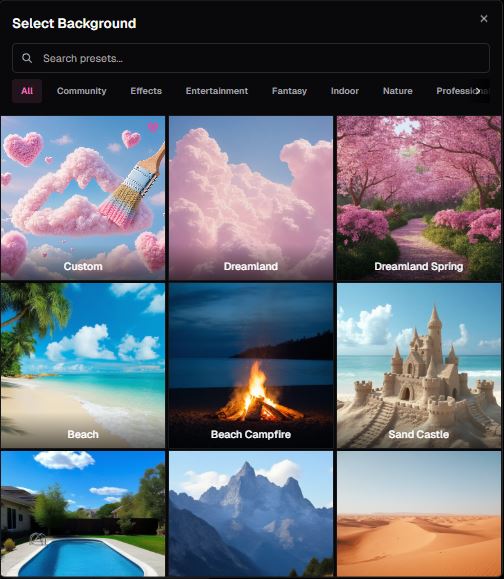
Now things start to feel like a scene instead of a test clip.
- Click Background
- Pick a setting (example shown: Gym)
Backgrounds influence more than visuals:
- Lighting tone
- Mood
- Context of the action
You can skip this step, but honestly? Don’t.
A good background makes even short clips feel intentional instead of random.
Step 6: Choose an Outfit (Optional, Visual Focus)
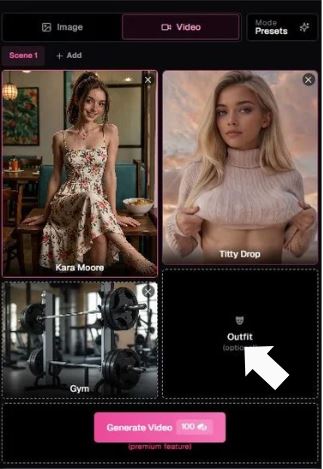
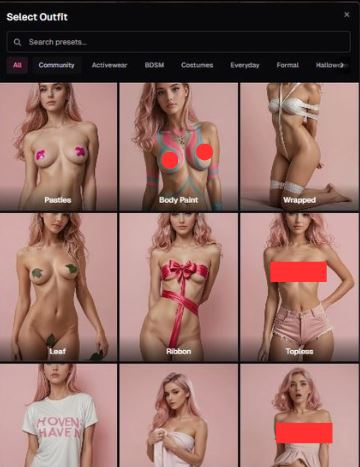
This tile is marked optional, but it’s doing a lot of heavy lifting visually.
- Click Outfit
- Select clothing (example shown: Lingerie)
Outfits affect:
- Fabric physics
- How movement reads on the body
- Overall aesthetic appeal
Skipping outfits defaults to the character’s base clothing. That’s fine—but if you care about personalization, this is where you dial it in.
Step 7: Use Custom Prompt (Premium Feature)
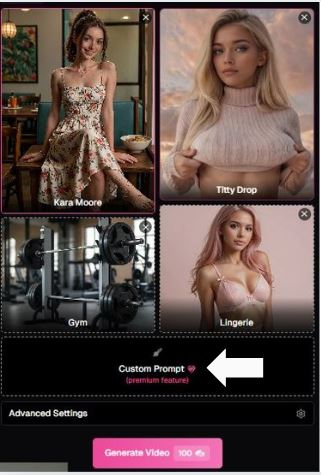
Below the four main tiles you’ll see Custom Prompt (Premium Feature).
This is where experienced users separate themselves from beginners.
What you can do here:
- Describe subtle behaviors
- Adjust mood or pacing
- Add small scene details the presets don’t cover
Examples of what belongs here:
- Emotional tone
- Camera framing suggestions
- Micro-movements
If you’re on free access, this stays locked. If you’re premium, this is where the AI really starts listening.
Step 8: Open Advanced Settings
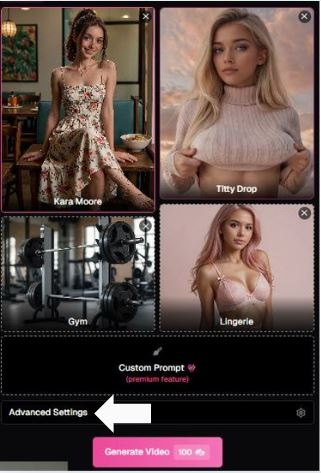
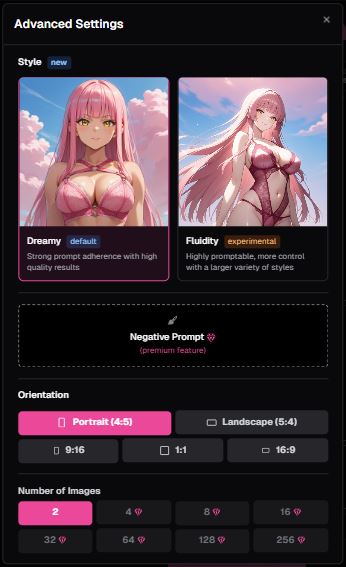
Under Custom Prompt is Advanced Settings.
This is for users who like fine control.
While the exact toggles aren’t expanded in the screenshots, this section typically handles:
- Output quality
- Motion smoothness
- Generation behavior
If you’re experimenting or refining results, this panel is worth exploring. If you’re just testing the waters, you can leave it untouched.
Step 9: Generate the Video
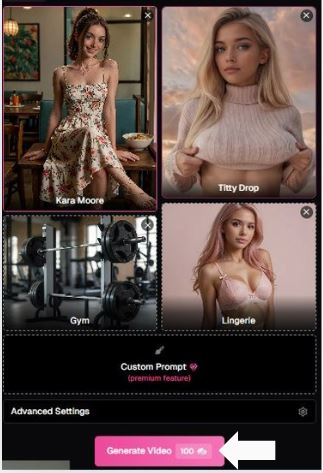
The final step is refreshingly straightforward.
- Click Generate Video
- The button shows 100% (indicating full generation strength)
- The system processes your selections into a video clip
Once generation starts:
- You wait (time depends on server load and settings)
- The video appears in your results feed
That’s it. No extra confirmations. No surprise pop-ups.
How the Tool Works (Really)
Instead of dumping a dry bullet list, let me walk you through how I personally saw it unfold when you click that “Generate” button:
- Pick your character first – you can load an existing avatar or create one. It becomes the star of your video.
- Choose the action – what they’re doing is the anchor of the video. This drives the motion, not some random guess.
- Background & outfits come next (optional but they add flavor).
- Add your custom prompt – this is where you describe what you actually want to see.
If you’ve ever used an image AI generator before, it’s similar, but now each frame tries to link into the next so you get motion, not still shots.
There’s a bit of a learning curve here. You can’t just say “make a video about X” and expect cinematic quality.
The prompts, choices of action, and the underlying model’s quirks all matter. But if you ask it the right way, it’s pretty cool.
Pros That Truly Matter
I want to talk about what works – not just what’s claimed:
| Strength | Why It’s Worth Noticing |
| Unfiltered Output | No censorship layers blocking mature themes. If the platform says “uncensored”, it means it won’t auto-reject your prompts purely because they’re adult-oriented. |
| Freemium Accessibility | You can explore without paying immediately. Premium unlocks higher quality and more generation options. |
| Customization | Characters, scenes, outfits – you control them. |
| Short Video Clips | It’s not static images – you get movement (think seconds of video, not minutes). |
| NSFW Freedom | Unlike some mainstream AIs that refuse adult content, this tool explicitly supports that uncensored content generation. |
But Let’s Talk Real-World Experiences
I’d be fibbing if I said it was perfect. You might run into:
- Quality inconsistency. Some clips look surprisingly smooth; others feel jittery or simplified. It’s not always photorealistic motion like a movie.
- Learning prompt nuance. You’ll get better results when you think like the AI. That is, give structured descriptive prompts instead of vague phrases.
- Speed and resolution limits. Free outputs are usually lower resolution and short in duration. The premium tiers speed this up and add resolution.
Some people in community threads pointed out – and this might surprise you – that uncensored video isn’t flawless on every platform; even uncensored tools sometimes struggle with nudity if it’s too realistic.
One Reddit user mentioned a generator that didn’t accept nude uploads for video creation.
So when you hear “uncensored,” remember: it means not blocked by content filters, not perfectly realistic porn-grade video every time.
My Honest Take
Now allow me to dispense with the pretenses and speak as a couple of people sipping on coffee would:
I’ve played with many of the AI generators – images, text even a few video tools. The vast majority are playing it safe because they’re attempting to stay out of trouble.
Ourdream. ai? It does not waffle about that. It hands you the keys and says “Okay, go ahead, describe what you want”. For creatives and role players, explorers, that freedom is liberating – but it’s also a responsibility.
If you’re wondering about pushing generative tech beyond sanitized corners, there are few easier inroads to begin with.
It’s more like stepping into a workshop instead of a showroom: raw, flexible and sometimes messy – but you feel like you’re making something.
I wouldn’t promise blockbuster quality. But if you find yourself wondering, “Can this translate my unconventional idea into movement?” the answer is a qualified yes - with some skill and patience.
Safety, Style, and Responsibility
I can’t ignore this: just because you can generate uncensored content doesn’t mean every possible prompt is acceptable or legal. Always respect personal likeness rights, consent, and laws in your area. Uncensored in policy doesn’t override real-world ethical boundaries.
Summary at a Glance
| Category | Verdict |
| Freedom | High – few restrictions on content themes. |
| Ease of Use | Moderate – intuitive once you get the hang of characters & prompts. |
| Output Quality | Varies – sometimes impressive; other times basic motion. |
| Best For | Explorers, creative storytellers, roleplayers wanting uncensored output. |
| Not Ideal For | Professional video production or ultra-realism. |