Let’s get down to brass tacks: Mydreamcompanion is an AI service that allows you to design a virtual “companion” before generating all sorts of material related to them – from images and video, which can be somewhat or completely explicit.
It’s not just any old chat bot; the idea is to create a coherent persona, style and look, then approach with visuals and clips that complement that vision.
You choose a companion (or create your own), you talk to it, and you set the mood – then tell the AI what kind of images that vibe should lead to. Your images and videos are connected directly to the character you created.
Some of you might be already saying, “Oh great, another role-play bot with some sexy pictures.” – and yeah, sure, though it wants to go a layer deeper: personalized content that feels cohesive rather than random clips plucked from a library. That’s the selling point.
Mydreamcompanion Video Generator: Detailed user guide
Step 1: Choose Style Preset & Rendering Mode
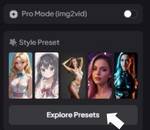
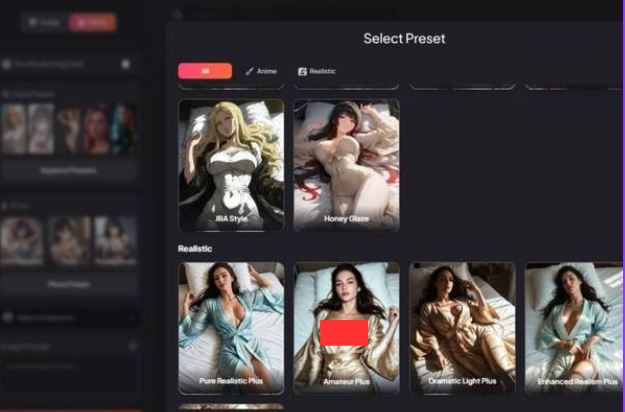
Visible features
- A Style Preset section with visual thumbnails
- A button labeled “Explore Presets”
- A toggle labeled “Pro Mode”
- A visible resolution indicator (example: 512×512 or higher)
What presets do
Style presets act like visual filters combined with model tuning. They affect:
- Realism vs illustration
- Lighting quality
- Skin texture
- Facial detail
- Color grading
Clicking Explore Presets opens more styles, allowing you to experiment without rewriting your prompt.
Pro Mode toggle
When enabled:
- Higher-quality rendering
- Better anatomy consistency
- More accurate prompt interpretation
- Slower generation, but better results
If quality matters more than speed, turn this on.
Step 2: Select Pose & Body Position
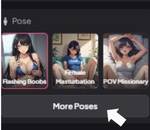
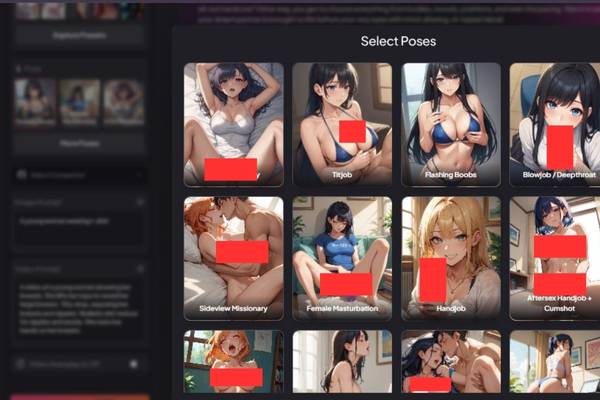
Visible features
- A Pose section at the top
- Thumbnails showing different pose categories
- A button labeled “More Poses”
- Individual pose cards (examples shown in the UI):
- Standing / sitting styles
- Perspective-based poses
- Expressive or dynamic poses
How to use it
This step controls body language and camera angle.
- Click a pose thumbnail to select it.
- The selected pose gets a highlighted border.
- Clicking “More Poses” opens additional pose options, letting you refine how your AI girlfriend is positioned.
Why this matters
The pose heavily affects:
- The overall mood
- How the character interacts with the “camera”
- How clothing, hair, and proportions are displayed
If you’re unsure, start neutral. You can always regenerate later.
Step 3: Select your Companion
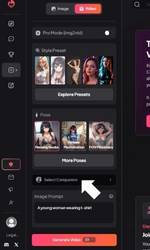
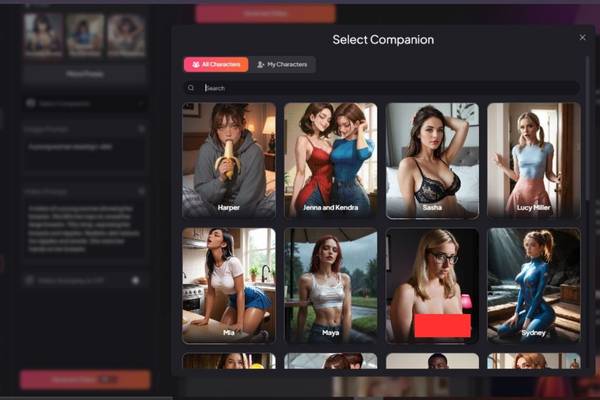
This step defines who your AI girlfriend is. Before anything else, you select a companion that acts as the base identity for all future generations.
When you click Select Companion, a pop-up window opens showing:
A grid of companion cards (each with an image and name)
Tabs for All Companions and My Characters
A search bar to quickly find a specific companion
Each companion represents a pre-built character with a consistent face, body type, and overall look. Selecting one ensures your AI girlfriend stays visually consistent across generations.
To choose a companion:
Browse or search the list
Click on a companion card
The window closes and the companion is linked to your creation
Once selected, the companion appears in the generator with an Unlink option. Unlinking removes character consistency and lets the AI generate freely.
Step 4: Write the Prompt (Core Personality & Appearance)
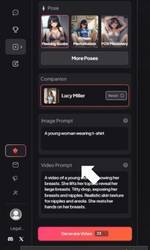
Visible features
- A text box labeled “Prompt”
- Placeholder text encouraging you to describe the character
- An optional “Negative Prompt” field
- A Companion selector (example shown: a named companion with an “Unlink” button)
What this step controls
This is the heart of the AI girlfriend.
You describe:
- Hair color & style
- Facial features
- Outfit or fashion style
- Vibe or personality tone
- Age appearance (must be adult)
- Overall aesthetic (realistic, anime, stylized, etc.)
How to use it effectively
- Write naturally, like you’re describing a character to a friend.
- Use commas instead of full sentences if you want tighter control.
- The Negative Prompt lets you exclude things you don’t want (e.g., certain styles, artifacts, distortions).
Companion linking
If a companion is linked:
- The AI will try to maintain consistency across generations
- Unlinking resets that influence
This is useful if you want the same girlfriend across multiple images.
Step 5: Generate & Review the Result
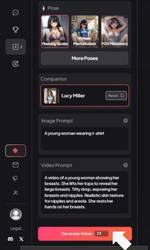
Visible features
- A large “Generate” button at the bottom
- Credit or cost indicator
- Loading state during generation
What happens here
Once you click Generate:
- The system processes pose + prompt + style
- The image is rendered
- The final AI girlfriend image appears
- The result is saved to your gallery/history
You can:
- Regenerate with the same settings
- Adjust a single step (pose, prompt, style)
- Start a new character from scratch
Nothing forces you to accept the first result—iteration is expected.
Behind the Scenes – How It Works
Here’s the “how does it actually do that?” part, broken down:
| Feature | What It Means |
| Character-Driven Media | Videos and images maintain the same character look and personality across sessions – not random stock stuff. |
| Prompt-Based Generation | You give detailed descriptions – think the visuals are shaped by what you actually want to see, not just generic templates. |
| Dual Mode: Image & Video | The same tool lets you switch to video generation from the same interface. |
| Privacy-Focused Creation | Everything you make stays within the platform unless you export it yourself. |
One thing that stood out in the documentation is that the platform labels NSFW image and video tools as “uncensored” and designed to handle adult content without restrictive filters.
That’s not something most mainstream AI tools offer, so if your priority is freedom of expression rather than safety-filtered outputs, this is exactly the sort of place people gravitate toward.
How the NSFW Video Tool Feels in Practice
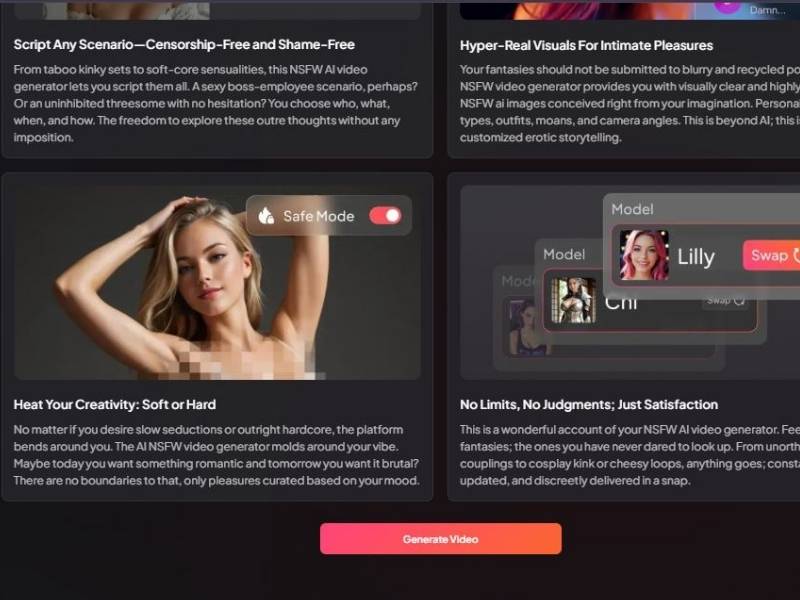
Let me talk to you real: I tried to piece together a sense of what this is like from real user feedback and reviews. There isn’t an oversupply of official details about the video generation itself on the site, but enough commentary exists to sketch the experience:
- The video feature is described as a natural extension of the personalized character system – not tacked on as an afterthought.
- Users report the tool can produce short, coherent clips that match the character’s appearance and the scenario you describe.
- Think of it less like Hollywood animation and more like AI-assisted storytelling – short, dynamic sequences that reflect your prompts.
Here’s what I like about that:
- You’re not describing something in isolation – the AI remembers the character’s style and personality across sessions, which helps keep visuals consistent.
- There’s creative control – not just pressing a button and hoping the output matches your idea. You can adjust prompts till it feels right.
And here’s the quirky bit – there are mixed user reports out there. Some people on forums talk about being underwhelmed by how credits drain or how the tool interprets odd requests; others rave about the freedom to generate what they want.
That tells me two things: it’s powerful, but science-project territory if you don’t spend a bit of time learning how to talk to it.
Should You Try It? (My Two Cents)
Let’s be blunt – if you’ve ever been frustrated by mainstream image/video AI tools because they just erase anything even hinting at adult themes, then this platform feels like a refreshingly uncensored sandbox.
Here’s the honest trade-off:
What’s Cool
- Personalized visuals tied to characters rather than random stock-like outputs.
- NSFW generation without built-in content blocks typical of mainstream tools.
- Flexibility to start free and explore before spending.
- Creative tool for exploring fantasies, storytelling or concept art without judgment.
What’s Worth Watching For
- Non-standard tools sometimes mean jagged edges in output quality or prompt interpretation – this isn’t a polished Spielberg-level renderer.
- Some users report credit systems that drain faster than expected, so it pays to test the free tier before you commit.
- Because it’s uncensored, the responsibility for legality, consent and ethical use lies entirely with you.
A Little Humor With a Lot of Caveats
If you’re the kind of person who’s ever hammered at a mainstream AI tool screaming, “MAKE IT HOTTER, BUT PLEASE DON’T GET BLOCKED!!!” – you’ll find Mydreamcompanion’s tools feel like someone finally unlocked the secret adult mode. No shame, no chains, just “Go ahead, describe it.”
But it also feels like those moments in life where your mom says, “Be careful,” and you realize why that phrase exists.
This tool gives freedom – it doesn’t babysit you. So if you’ve got your ethical compass tuned, this could be a fun creative playground.
Final Scorecard – Quick Comparison
| Attribute | How It Stacks Up |
| Freedom of Expression | Very High (not filter-locked) |
| Visual Consistency | Strong (character-based) |
| Ease of Prompting | Medium (takes practice) |
| Output Quality | Moderate to High |
| Privacy | Good (private generation) |
Bottom Line
If you’re honestly curious about NSFW AI videos and you’re tired of hitting walls with mainstream generators, Mydreamcompanion offers a unique blend of personalization, flexibility and creative control. It doesn’t hold your hand, but for someone who enjoys tinkering with prompts and sculpting digital characters, it’s easy to see how this could be fun, useful, and yes – enticing to explore.
If you want, I can walk through how to write prompts that work especially well for video generation, or compare this tool to other AI video generators that support adult-oriented content. Just let me know what direction you want to go next!